
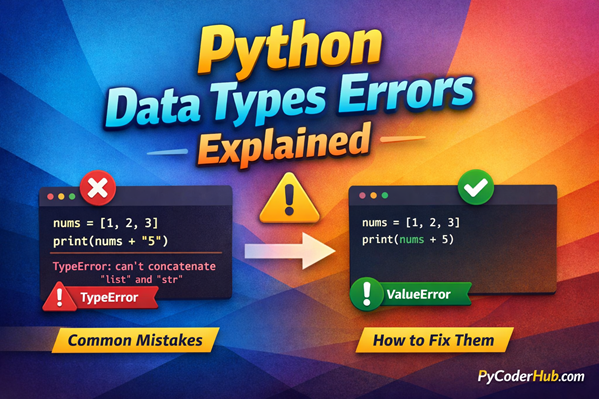
Introduction: Python Data Types Errors
In the previous lessons, you learned what Python data types are, how they are categorized, and how they behave in different situations. From understanding numeric and collection types to exploring mutability and important rules, you’ve built a strong foundation.
But here’s the reality
Even after understanding all these concepts, beginners (and even experienced developers) often run into errors when working with data types.
Why?
Because knowing what a data type is… is very different from knowing how it behaves in real code.
That’s exactly what this lesson is about.
In this guide on Python data type errors, you’ll learn the most common mistakes developers make, understand why they happen, and see how to fix them step by step.
What You’ll Learn
In this lesson, you will:
- Understand the most common Python Data Types Errors
- See real-world code examples that produce errors
- Learn the exact error messages Python gives
- Understand the reason behind each error
- Fix errors with correct and clean code examples
- Learn best practices to avoid these mistakes in the future
- Strengthen your understanding of how Python handles data types internally
Before we start with Error #1, let’s first understand why these data types errors happen.
Why These Data Types Errors Happen
Think of Python data types like different kinds of building materials.
- Numbers are like bricks
- Strings are like wood
- Lists are like containers
Now imagine trying to:
- Add wood to bricks as if they are the same thing
- Use a container where a single brick is expected
- Change something that is designed to stay fixed
That’s exactly what happens when data type errors occur in Python.
The Real Reason Behind These Errors
Most Python Data Types Errors happen because of one (or more) of these reasons:
1. Type Mismatch
Trying to perform operations between incompatible data types.
Example:
- Adding a number and a string
- Combining a list with an integer
2. Wrong Assumptions About Data
Assuming a variable holds one type, but it actually holds another.
This is very common when:
- Taking user input (
input()always returns a string) - Reading data from files or APIs
3. Misunderstanding Mutability
Trying to modify something that cannot be changed.
Example:
- Changing a string character directly
- Using a list as a dictionary key
4. Invalid Conversions
Trying to convert data into a type that doesn’t support that value.
Example:
- Converting
"hello"into an integer - Parsing invalid numeric strings
5. Incorrect Usage of Data Structures
Using a data type in a way it wasn’t designed for.
Example:
- Using unhashable types in sets or dictionary keys
- Mixing incompatible collection operations
Key Insight
Python is a strongly-typed language.
That means:
It does not silently guess what you mean
It throws an error immediately when something doesn’t make sense
And that’s actually a good thing—it helps you write correct and predictable code.
Now that you understand why these errors happen, let’s start exploring them one by one.
Let’s begin with Error #1…
Error #1: TypeError – Unsupported Operand Type(s)
This error occurs when you try to perform an operation between incompatible data types that Python cannot process together.
Problem Code Example
numbers_list = [1, 2, 3]
result_value = numbers_list + 5

print(result_value)
What Error Do You Get?
TypeError: can only concatenate list (not "int") to listWhy This Happens
At first glance, this might look logical:
“I have a list, and I want to add 5 to it.”
But here’s the confusion
numbers_listis a list5is an integer
And in Python:
The + operator does different things depending on the data type
- For numbers → it performs addition
- For lists → it performs concatenation (joining two lists)
So Python expects:
list + listBut instead, you gave:
list + intThat’s why Python raises a TypeError
Explanation
This error directly connects to what you learned earlier:
- In collection data types (list) →
+means combining lists - In numeric data types (int) →
+means mathematical addition
Python does NOT automatically convert or guess your intention.
This is part of Python’s strong typing system:
- It enforces clear rules
- It avoids unexpected behavior
How to Fix It
Fix #1: Add the value inside the list properly
numbers_list = [1, 2, 3]
numbers_list.append(5)

print(numbers_list)
Output:
[1, 2, 3, 5]Fix #2: Use list concatenation correctly
numbers_list = [1, 2, 3]
result_value = numbers_list + [5]

print(result_value)
Output:
[1, 2, 3, 5]Fix #3: Perform numeric addition (if that was your intention)
first_number = 5
second_number = 10

result_value = first_number + second_number

print(result_value)
Output:
15How to Avoid This Error
Follow these simple rules:
- Always check the data type before using operators
- Remember:
+means different things for different data types
- Use:
.append()→ to add a single item to a list+→ only to combine lists
Mental Model to Remember
Think of it like this:
- A list is a container
- An integer is a single value
You can:
- Put a value inside the container
- Combine two containers
But you cannot:
- Directly add a value to the container itself
Quick Recap
- This is one of the most common Python Data Types Errors
- It happens due to a type mismatch (list vs int)
- Python does not allow incompatible operations
- The fix depends on your intention:
- Add to list → use
.append() - Combine lists → use
+
- Add to list → use
Now that you understand this, let’s move to the next common mistake.
Error #2: TypeError – Cannot Concatenate ‘str’ and ‘int’
This error happens when you try to combine a string and a number directly using the + operator.
Problem Code Example
user_age = 25
message_text = "Your age is: " + user_age

print(message_text)
What Error Do You Get?
TypeError: can only concatenate str (not "int") to strWhy This Happens
This is one of the most common beginner confusions in Python.
At first, it looks simple:
“I just want to display a message with a number.”
But here’s what Python sees:
"Your age is: "→ stringuser_age→ integer
And when you use + with strings:
Python expects string + string
But you gave:
string + int Python does not automatically convert the integer into a string.
Explanation
Python avoids automatic conversion to prevent unexpected results.
- Strings can only be concatenated with strings
- Numbers can only be added to numbers
For example:
"10" + "5"→"105"(string concatenation)10 + 5→15(numeric addition)
If Python auto-converted types, it could create confusion.
How to Fix It
Fix #1: Convert number to string using str()
user_age = 25
message_text = "Your age is: " + str(user_age)

print(message_text)
Output:
Your age is: 25Fix #2: Use f-strings (Recommended)
user_age = 25
message_text = f"Your age is: {user_age}"

print(message_text)
Output:
Your age is: 25This is the cleanest and most modern approach
Fix #3: Use format() method
user_age = 25
message_text = "Your age is: {}".format(user_age)

print(message_text)
Output:
Your age is: 25How to Avoid This Error
- Always check data types when combining values
- Remember:
- Strings only work with strings using
+
- Strings only work with strings using
- Prefer:
- f-strings for formatting (best practice)
- Be careful when working with:
- User input (
input()always returns string)
- User input (
Mental Model to Remember
Think of it like this:
- A string is text
- An integer is a number
You can:
- Combine text with text
- Add numbers with numbers
But you cannot:
- Directly mix text and numbers without conversion
Quick Recap
- This is a very common Python Data Types Errors
- It happens due to string + integer mismatch
- Python does not auto-convert types
- Fix it using:
str()conversion- f-strings (recommended)
Now that you understand this, let’s move to another important error.
Error #3: TypeError – ‘int’ Object Is Not Subscriptable
This error occurs when you try to access or index a value like a sequence (such as a list or string), but the value is actually an integer.
Problem Code Example
user_score = 95

first_digit = user_score[0]

print(first_digit)
What Error Do You Get?
TypeError: 'int' object is not subscriptableWhy This Happens
This error comes from a very common misunderstanding.
You tried to do this:
user_score[0]This syntax (using square brackets []) is called indexing.
But indexing only works on sequence data types, like:
- strings
- lists
- tuples
It does NOT work on integers.
Because:
user_score = 95is a single value- It is NOT a collection of elements
So Python raises:
“int object is not subscriptable”
Explanation
This connects directly to your earlier lesson on collection vs non-collection data types:
- Sequence types (list, string, tuple) → support indexing
- Numeric types (int, float) → do NOT support indexing
Indexing means:
“Give me a specific element from a collection”
But an integer:
is not a collection—it’s just one value.
How to Fix It
Fix #1: Convert the integer to a string (if you want digits)
user_score = 95

first_digit = str(user_score)[0]

print(first_digit)
Output:
9Fix #2: Work with digits mathematically
user_score = 95

first_digit = user_score // 10

print(first_digit)
Output:
9Fix #3: Use a list if you meant a collection
user_scores_list = [95, 88, 76]

first_score = user_scores_list[0]

print(first_score)
Output:
95How to Avoid This Error
Always check whether your variable is:
- a single value OR
- a collection (list, string, etc.)
Remember:
- Only sequence types support indexing
Use type() if you’re unsure:
print(type(user_score))Mental Model to Remember
Think of it like this:
- A list or string is like a row of boxes → you can pick one box using an index
- An integer is like a single solid object → nothing to pick inside
Quick Recap
- This is a common Python Data Types Errors
- It happens when you try to index a non-sequence type
- Integers do not support indexing
- Fix it by:
- Converting to string
- Using correct data structure
- Or applying proper logic
Great progress so far! Let’s continue with another important error.
Error #4: TypeError – Unhashable Type: ‘list’
This error occurs when you try to use a mutable data type (like a list) in a place where Python requires an immutable (hashable) type.
Problem Code Example
user_scores = [85, 90, 95]

student_data = {
    user_scores: "Top Performer"
}

print(student_data)
What Error Do You Get?
TypeError: unhashable type: 'list'Why This Happens
This error can feel confusing at first, because the code looks valid.
But here’s the key issue
You are trying to use a list as a dictionary key
In Python:
- Dictionary keys must be hashable
- Lists are not hashable
What Does “Unhashable” Mean?
A hashable object is something that:
- Has a fixed value
- Does not change over time (immutable)
- Can be uniquely identified using a hash value
Lists fail this requirement because:
- They are mutable (can change anytime)
Explanation
This directly connects to your earlier lesson:
Mutable vs Immutable Data Types
- Immutable types (allowed as keys):
- string
- integer
- tuple (if it contains immutable elements)
- Mutable types (NOT allowed):
- list
- dictionary
- set
Why Python enforces this:
If dictionary keys could change:
- It would break how Python stores and retrieves values internally
- Data lookup would become unreliable
How to Fix It
Fix #1: Convert list to tuple (Recommended)
user_scores = [85, 90, 95]

student_data = {
    tuple(user_scores): "Top Performer"
}

print(student_data)
Output:
{(85, 90, 95): 'Top Performer'}Tuples are immutable → safe to use as keys
Fix #2: Use a different key (like string)
user_scores = [85, 90, 95]

student_data = {
    "user_scores": "Top Performer"
}

print(student_data)
Output:
{'user_scores': 'Top Performer'}Fix #3: Store list as value instead of key
user_scores = [85, 90, 95]

student_data = {
    "Top Performer": user_scores
}

print(student_data)
Output:
{'Top Performer': [85, 90, 95]}How to Avoid This Error
Never use mutable data types as:
- dictionary keys
- set elements
Always prefer:
- strings
- numbers
- tuples (if needed)
Remember:
If it can change → it cannot be a key
Mental Model to Remember
Think of dictionary keys like labels on storage boxes:
- A label must stay fixed and readable
- If the label keeps changing → you can’t find the box
A list is like a label that keeps changing → not allowed
A tuple is like a permanent label → safe to use
Quick Recap
- This is a common Python Data Types Errors
- It happens when using a mutable type (list) as a key
- Lists are not hashable → cannot be used in dict or set
- Fix it by:
- Converting to tuple
- Using proper immutable keys
Let’s continue with another important error.
Error #5: ValueError – Invalid Literal for int()
This error occurs when you try to convert a value into an integer, but the value is not a valid number.
Problem Code Example
user_input_value = "25 years"

converted_number = int(user_input_value)

print(converted_number)
What Error Do You Get?
ValueError: invalid literal for int() with base 10: '25 years'Why This Happens
At first glance, it may seem like:
“There is a number (25), so it should work.”
But Python sees the full string:
"25 years"And this is NOT a pure number.
When using int():
- Python expects a clean numeric string, like:
"25""100"
But not:
"25 years""hello""12.5"(forint()specifically)
Because Python cannot partially extract numbers automatically.
Explanation
This connects to:
int()only works with valid integer representations- Python avoids guessing or trimming values automatically
This is part of Python’s design:
- Explicit is better than implicit (from Zen of Python)
How to Fix It
Fix #1: Clean the string before conversion
user_input_value = "25 years"

clean_number_text = user_input_value.split()[0]
converted_number = int(clean_number_text)

print(converted_number)
Output:
25Fix #2: Use proper numeric input
user_input_value = "25"

converted_number = int(user_input_value)

print(converted_number)
Output:
25Fix #3: Handle errors safely using try-except
user_input_value = "25 years"

try:
    converted_number = int(user_input_value)
    print(converted_number)
except ValueError:
    print("Invalid number format")
Output:
Invalid number formatHow to Avoid This Error
- Always validate input before conversion
- Be careful when working with:
- user input
- file data
- API responses
- Use:
.isdigit()(string method) for simple checkstry-exceptfor safe conversion
Mental Model to Remember
Think of int() like a strict gatekeeper:
- It only allows pure numbers inside
- If there is any extra text → it rejects immediately
Quick Recap
- This is a very common Python Data Types Errors
- It happens when converting invalid strings to integers
- Python does not extract numbers automatically
- Fix it by:
- Cleaning input
- Validating data
- Using error handling
You’re now covering real-world input problems—this is where Python skills become practical!
Error #6: TypeError – ‘float’ Object Cannot Be Interpreted as an Integer
This error occurs when you pass a float value to a function that strictly expects an integer.
Problem Code Example
total_items_count = 5.0

for current_index in range(total_items_count):
    print(current_index)
What Error Do You Get?
TypeError: 'float' object cannot be interpreted as an integerWhy This Happens
At first, this might feel confusing:
“5.0 is basically 5… so why doesn’t it work?”
But here’s the key point
5→ integer5.0→ float
Even though they look similar, Python treats them as different data types.
What range() Expects
The range() function only accepts:
integers
Because it generates:
- a sequence of whole numbers
- step-by-step iteration
So when you pass:
range(5.0) Python rejects it.
Explanation
Some functions in Python:
- Do NOT perform automatic conversion
- Require exact data types
range() is one of them.
Even though:
5 == 5.0 # TrueTheir types are still different:
type(5)    # int
type(5.0)  # float
How to Fix It
Fix #1: Convert float to integer using int()
total_items_count = 5.0

for current_index in range(int(total_items_count)):
    print(current_index)
Output:
0
1
2
3
4
Fix #2: Use integer from the beginning (Best Practice)
total_items_count = 5

for current_index in range(total_items_count):
    print(current_index)
Output:
0
1
2
3
4
Fix #3: Round value if needed
total_items_count = 5.7

for current_index in range(round(total_items_count)):
    print(current_index)
Output:
0
1
2
3
4
5
How to Avoid This Error
- Always check expected data types of functions
- Use:
int()when working with loops
- Avoid passing:
- float values to functions like
range()
- float values to functions like
- Be careful when:
- doing calculations that return floats
Mental Model to Remember
Think of range() like a step counter:
- It needs whole steps (integers)
- It cannot handle fractional steps (floats)
Quick Recap
- This is a common Python Data Types Errors
- It happens when a float is used where an integer is required
range()only accepts integers- Fix it by:
- converting to
int() - or using integer values directly
- converting to
Here’s another simple example to understand this error more clearly, especially if range() and loops feel confusing.
Another Example (Beginner-Friendly)
Problem Code Example
repeat_count = 3.0

message_text = "Hello " * repeat_count

print(message_text)
What Error Do You Get?
TypeError: can't multiply sequence by non-int of type 'float'Why This Happens
When you multiply a string, Python expects an integer.
"Hello " * 3→ repeats text 3 times"Hello " * 3.0→ not allowed
Even though 3.0 looks like 3, it is still a float.
Simple Explanation
Python treats this like:
- “Repeat this text 3 times”
- “Repeat this text 3.5 times” (not possible)
How to Fix It
repeat_count = 3.0

message_text = "Hello " * int(repeat_count)

print(message_text)
Output:
Hello Hello HelloThis example is easier to understand because:
- You can see the output directly
- It builds a strong intuition about why integers are required
Error #7: AttributeError – ‘int’ Object Has No Attribute
This error occurs when you try to use a method that does not belong to the data type of the object.
Problem Code Example
user_age = 25

converted_value = user_age.upper()

print(converted_value)
What Error Do You Get?
AttributeError: 'int' object has no attribute 'upper'Why This Happens
At first, this might look fine if you’re thinking:
“I’ve used .upper() before, so it should work.”
But here’s the problem
user_ageis an integer.upper()is a method that belongs to strings
So Python is basically saying:
“You are trying to use a string method on a number.”
Explanation
In Python:
- Each data type has its own set of methods
For example:
- String methods:
.upper(),.lower(),.split()
- List methods:
.append(),.remove()
- Integer:
- Does NOT have string methods
Python does not mix methods between types.
How to Fix It
Fix #1: Convert integer to string
user_age = 25

converted_value = str(user_age).upper()

print(converted_value)
Output:
25Now it works because:
str(user_age)→"25"(string)
Fix #2: Use correct method for the correct type
If your goal is not string formatting, then:
Don’t use .upper() at all
How to Avoid This Error
- Always check the data type before using methods
- Remember:
- Methods belong to specific data types
- Use
type()if unsure:
print(type(user_age))Mental Model to Remember
Think of methods like tools:
- A string has text tools (uppercase, split, etc.)
- A number has numeric behavior, not text tools
You cannot use a screwdriver where a hammer is needed.
Quick Recap
- This is a common Python Data Types Errors
- It happens when using a method on the wrong data type
.upper()works only on strings, not integers- Fix it by:
- converting to correct type
- or using the correct method
You’re now understanding how methods are tied to data types—this is a key Python concept.
Error #8: TypeError – Cannot Convert ‘NoneType’ to int
This error occurs when you try to convert a value that is None into an integer.
Problem Code Example
def get_user_age():
    print("Fetching user age...")

user_age = get_user_age()

converted_value = int(user_age)

print(converted_value)
What Error Do You Get?
TypeError: int() argument must be a string, a bytes-like object or a number, not 'NoneType'Why This Happens
This error is a bit tricky for beginners because it’s not obvious at first.
The function:
def get_user_age():
    print("Fetching user age...")
Does NOT return anything.
So when you do:
user_age = get_user_age()The value of user_age becomes:
NoneKey Rule
In Python:
If a function does not return anything, it returns None by default.
So you are effectively doing:
int(None)Which is not allowed.
Explanation
This connects to:
The None Data Type
Nonerepresents absence of a value- It is NOT:
- a number
- a string
- a valid input for
int()
Python treats None as a completely separate data type.
How to Fix It
Fix #1: Return a proper value from the function
def get_user_age():
    return 25

user_age = get_user_age()

converted_value = int(user_age)

print(converted_value)
Output:
25Fix #2: Check for None before conversion
def get_user_age():
    print("Fetching user age...")

user_age = get_user_age()

if user_age is not None:
    converted_value = int(user_age)
    print(converted_value)
else:
    print("No value to convert")
Output:
Fetching user age...
No value to convert
Fix #3: Provide a default value
def get_user_age():
    return None

user_age = get_user_age() or 0

converted_value = int(user_age)

print(converted_value)
Output:
0How to Avoid This Error
- Always ensure functions return expected values
- Be careful when:
- working with functions
- handling missing data
- Use:
if value is not Nonechecks
- Avoid blindly converting values
Mental Model to Remember
Think of None like an empty box:
- You cannot turn an empty box into a number
- You must first put something inside it
Quick Recap
- This is a common Python Data Types Errors
- It happens when trying to convert
Noneinto an integer - Functions return
Noneby default if no value is returned - Fix it by:
- returning proper values
- checking for
None - using defaults
This is an important real-world scenario, especially when working with functions and APIs.
Error #9: IndexError – List Index Out of Range
This error occurs when you try to access an index that does not exist in a sequence like a list, string, or tuple.
Problem Code Example
numbers_list = [10, 20, 30]

print(numbers_list[3])
What Error Do You Get?
IndexError: list index out of rangeWhy This Happens
At first glance, this might feel confusing:
“The list has 3 elements, so index 3 should exist… right?”
But here’s the key concept
Indexing Starts from 0
For this list:
[10, 20, 30]The indexes are:
0 → 10
1 → 20
2 → 30
So when you do:
numbers_list[3]You are trying to access the 4th element, which does not exist.
Explanation
- Lists, strings, and tuples are ordered collections
- Each element is accessed using an index
- Index must be within the valid range:
How to Fix It
Fix #1: Use correct index
numbers_list = [10, 20, 30]

print(numbers_list[2])
Output:
30Fix #2: Use len() to stay within range
numbers_list = [10, 20, 30]

print(numbers_list[len(numbers_list) - 1])
Output:
30Fix #3: Loop safely
numbers_list = [10, 20, 30]

for current_value in numbers_list:
    print(current_value)
Output:
10
20
30
How to Avoid This Error
- Always remember:
- Index starts from 0
- Check list length using
len() - Avoid hardcoding indexes unless sure
- Prefer looping instead of manual indexing
Mental Model to Remember
Think of a list like a row of seats:
- Seats are numbered starting from 0
- If there are 3 seats → last seat is 2
- Asking for seat 3 → doesn’t exist
Quick Recap
- This is a common Python Data Types Errors
- It happens when accessing an invalid index
- Lists use zero-based indexing
- Fix it by:
- using correct index
- checking length
- looping safely
This error is extremely common in real-world coding—mastering it will save you a lot of debugging time.
Error #10: KeyError – Dictionary Key Not Found
This error occurs when you try to access a dictionary key that does not exist.
Problem Code Example
student_data = {
    "name": "Rahul",
    "age": 21
}

print(student_data["marks"])
What Error Do You Get?
KeyError: 'marks'Why This Happens
At first, it might seem like:
“I’m just trying to get the value of ‘marks’.”
But here’s the issue
- The dictionary contains:
"name""age"
But NOT:
"marks"So when Python tries to find "marks":
It fails and raises a KeyError
Explanation
- Dictionaries store data as key-value pairs
- You must use an existing key to access a value
Unlike lists:
- Lists use index positions
- Dictionaries use keys
How to Fix It
Fix #1: Use an existing key
student_data = {
    "name": "Rahul",
    "age": 21
}

print(student_data["age"])
Output:
21Fix #2: Use .get() method (Safe Access)
student_data = {
    "name": "Rahul",
    "age": 21
}

print(student_data.get("marks"))
Output:
NoneFix #3: Provide default value
student_data = {
    "name": "Rahul",
    "age": 21
}

print(student_data.get("marks", 0))
Output:
0How to Avoid This Error
- Always ensure the key exists before accessing
- Use:
.get()for safe accessinkeyword to check keys
- Be careful when:
- working with user input
- handling API data
Mental Model to Remember
Think of a dictionary like a locker system:
- Each key is a locker name
- You must use the correct key name to open it
If the key doesn’t exist → locker won’t open
Quick Recap
- This is a common Python Data Types Errors
- It happens when accessing a missing dictionary key
- Python raises
KeyErrorimmediately - Fix it by:
- using valid keys
- using
.get() - checking existence
Now that we’ve covered all the important Python Data Types Errors, let’s quickly recap everything before moving to the final conclusion.
Quick Recap: Python Data Types Errors
Here’s a quick summary of all the Python Data Types Errors we covered in this lesson:
| Error # | Error Type | What Causes It | Quick Fix |
|---|---|---|---|
| 1 | TypeError (list + int) | Mixing incompatible types | Use .append() or match types |
| 2 | TypeError (str + int) | Concatenating string with number | Convert using str() or use f-strings |
| 3 | TypeError (int not subscriptable) | Indexing a non-sequence type | Convert to string or use proper structure |
| 4 | TypeError (unhashable list) | Using mutable type as dict key | Convert list to tuple |
| 5 | ValueError (int() conversion) | Invalid string to integer | Clean input or validate before converting |
| 6 | TypeError (float instead of int) | Passing float where int required | Use int() or correct type |
| 7 | AttributeError (wrong method) | Using method on wrong data type | Convert type or use correct method |
| 8 | TypeError (NoneType to int) | Converting None value | Ensure function returns value |
| 9 | IndexError (out of range) | Accessing invalid index | Check length or use correct index |
| 10 | KeyError (missing key) | Accessing non-existing dict key | Use .get() or check key |
Key Takeaways
- Most Python Data Types Errors happen due to:
- Type mismatch
- Wrong assumptions about data
- Misuse of data structures
- Python is strict with data types:
It does not guess or auto-convert silently - The best way to avoid errors:
- Always check data types
- Use proper conversions
- Understand how each data type behaves
Visual Representation: Python Data Types Errors Quick Recap
Here is a visual summary of all the common Python Data Types Errors we discussed, along with their quick fixes to help you revise everything at a glance.
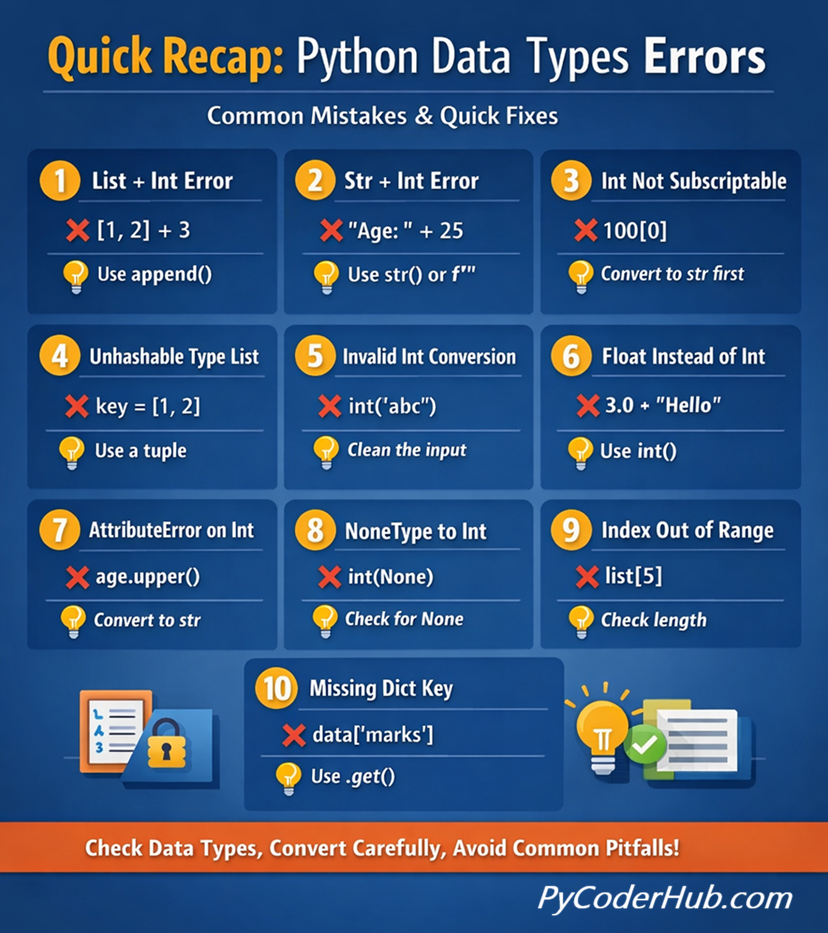
Use this visual as a quick reference whenever you encounter errors—over time, you’ll start recognizing and fixing these Python Data Types Errors instantly.
Conclusion
Many beginners assume that data type errors happen because Python is unpredictable, but in reality, these errors are Python’s way of protecting your code from invalid operations. Whether you’re trying to add incompatible types, access data incorrectly, convert invalid values, or work with missing keys and indexes, the underlying issue is usually a mismatch between what the code expects and what the data actually contains.
The good news is that these errors become much easier to understand once you develop the habit of checking data types, validating input values, and carefully reading error messages. In most cases, Python tells you exactly what went wrong—the challenge is learning how to interpret that information.
As you continue writing Python programs, you’ll encounter these errors less frequently because you’ll start recognizing common patterns before they cause problems. Instead of viewing exceptions as obstacles, treat them as useful debugging clues that help you write more reliable and predictable code.
By understanding the causes behind these common data type errors and knowing how to fix them, you’ve taken an important step toward becoming a more confident Python developer. 🐍
Suggested Posts
- Python Data Types Explained: Beginner-Friendly Introduction
- Python Numeric Data Types Explained (int, float, bool, None)
- Python Collection Data Types Explained (List, Tuple, Set, String)
- Python Mapping and Binary Data Types Explained (dict, bytes, bytearray, memoryview)
- Python Data Types Rules and Guidelines: What You Must Know
- Mutable vs Immutable in Python (Data Types Explained with Examples)
- Python Data Types Best Practices: Write Cleaner, Efficient, and Error-Free Code
- Python Data Types FAQs: Clear Answers to Common Questions (Beginner to Advanced)

5 thoughts on “Python Data Types Errors Explained: Common Mistakes and How to Fix Them”